Same-style image text repair
How to Edit Text in Image With Same Font
A practical same-style text replacement workflow
Learn how to select text, enter a replacement, and judge whether the new letters match the surrounding font style, color, lighting, and texture. This guide is for creative images and marketing assets, not official documents or records.
Preparing an edit is free. Generation requires purchased credits; credit packs start at $1.99.
Start your edit
Upload once. Change only the text.
You can choose the image and prepare the edit before signing in.
Choose an image to start
Upload imageDrag and drop it here, or browse your files
PNG, JPG, JPEG or WebP
Up to 20MB and 4096 × 4096 pixels
Made with this editor
See how well it keeps the style
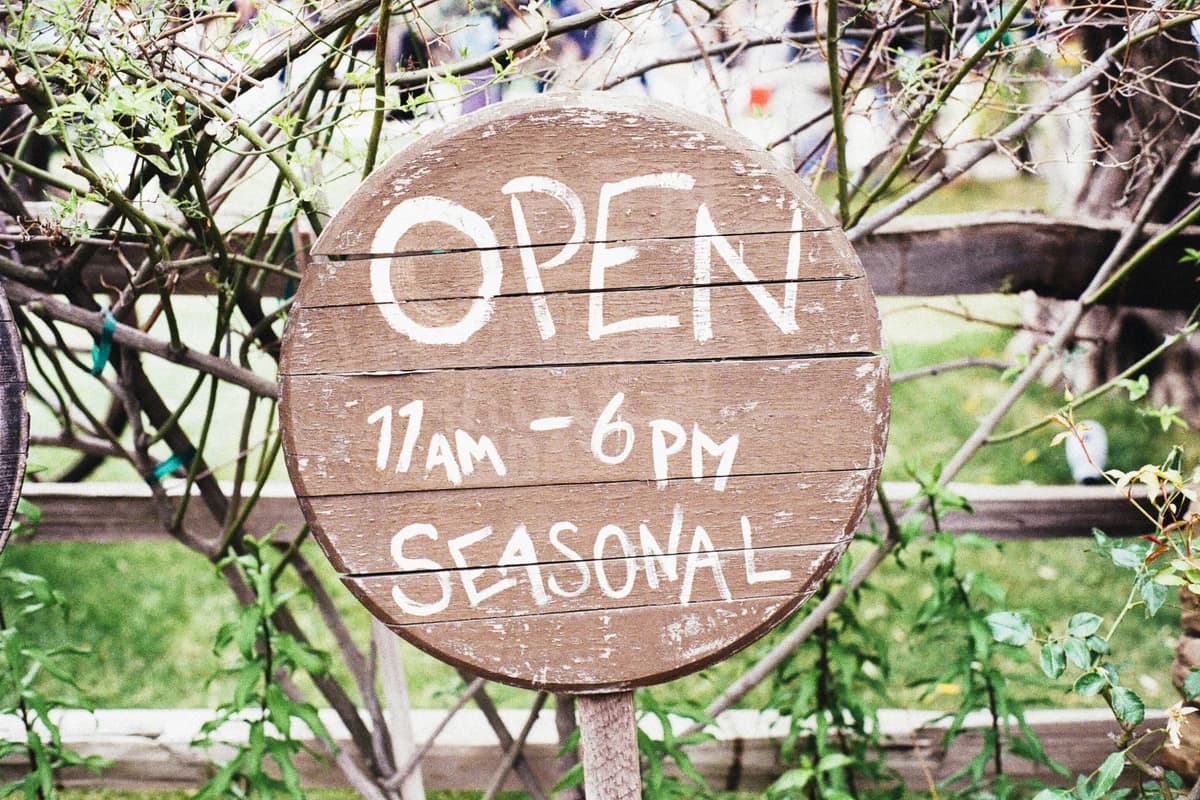
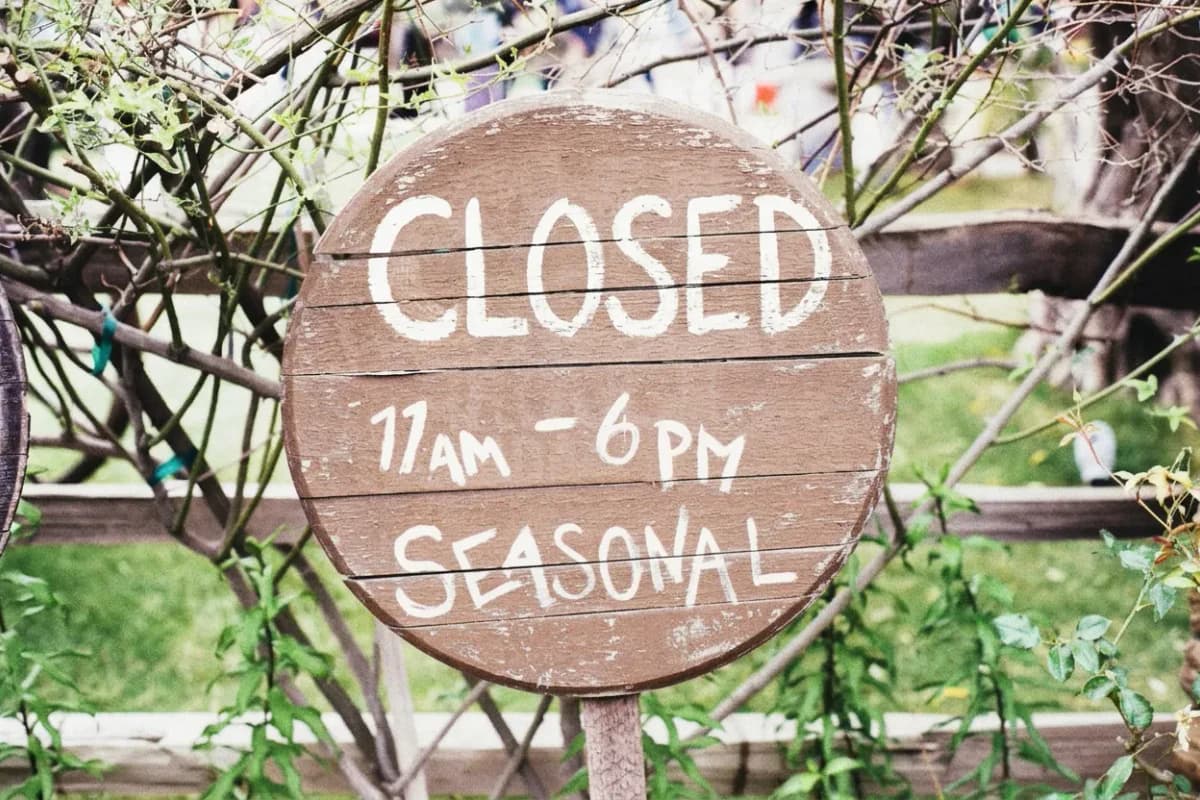
Real-photo demonstrations show the text changing while the surrounding scene and style stay intact.
Verified product activity
A focused editor with real usage behind it
Update the text you meant to change while keeping the finished visual intact.
- 39,000+
- Accounts created
- 34,000+
- Completed edits
- 900+
- Paying customers
What same-font matching means
ImageTextEdit does not pull the original font file out of the image. It studies the visible letters, shadows, color, texture, and spacing around your selection, then generates replacement text that looks like it belongs in the same scene.
- Use a guided workflow instead of guessing where to select or how much context the model needs.
- Keep creative updates fast when the original design file is missing or a full Photoshop edit is too slow.
- Know the failure cases before you spend credits, especially tiny text, blurry source images, and dense paragraphs.
How to edit text with the closest visual match
- Start with the cleanest source image. Use the highest-resolution version you have, because the model needs readable letter shapes and surrounding pixels to infer the style.
- Select the original text tightly. Cover the old letters and a small amount of nearby background, but avoid selecting unrelated artwork that should stay unchanged.
- Enter the exact replacement. Type the new words and mention visible style cues, such as bold white text, soft shadow, arched headline, or printed label texture.
- Compare spacing, edges, and lighting. Check whether the new text follows the same weight, baseline, blur, shadow, and surface texture before using the result.
Common edit scenarios
Event poster date
Before: "June 12" on an event poster headline.
After: "June 19" with the same headline weight and glow.
A tight selection helps preserve the background texture around the date.
Product mockup label
Before: "Original Roast" on a packaging mockup.
After: "Decaf Roast" with similar print edges and label color.
Works best when the label is sharp and the replacement has similar length.
AI social graphic correction
Before: "GROWTH HAK" in a generated campaign visual.
After: "GROWTH HACK" while preserving the AI image composition.
Useful when the image is strong but the generated text has one bad word.
Where the match can fail
- Same-font means a close visual match, not guaranteed access to the original font file.
- Long paragraphs, tiny labels, blurred screenshots, and warped perspective are harder to match.
- Large text changes may need multiple smaller edits so spacing and background repair stay natural.
- Official records, IDs, receipts, certificates, grades, and legal or financial documents are outside the safe use case.
Acceptable use
Use this workflow for creative and marketing images you own or have permission to edit. Do not use it to change official documents, financial records, academic records, identity materials, private messages, or evidence.
Supporting guides
- Change text in image
Use the focused page when you need to replace one wrong word, price, date, or label.
- Edit text in image
Use the main editor page for product photos, social graphics, AI images, and ad mockups.
- AI-image text editor
Fix misspelled or garbled words in AI-generated graphics.
- AI text repair guide
Compare editing versus regenerating when an AI image has broken text.
- Poster text edits
Apply the same workflow to posters, flyers, ads, and campaign graphics.
- Edit text in a JPG without text layers
Follow the JPG workflow when the visible letters are flattened into the image.
- Edit text in a PNG without text layers
Follow the PNG workflow when the original type layer is no longer available.
- Compare a PhoText alternative for same-style repair
Choose between manual type controls and one contained generative replacement.
FAQ
Is this the exact same font?
Usually it is a visual recreation, not the original font file. The goal is to make the replacement match the surrounding image closely enough for legitimate creative use.
How do I get a better same-font result?
Use a high-resolution image, select only the old text, keep the replacement short, and add style notes about color, weight, shadow, spacing, or texture.
When should I use Photoshop or regenerate instead?
Use manual design tools for dense paragraphs, precise brand typography, legal assets, or heavily distorted text. Regenerate when the whole image is flawed, not just one word.
Can I use this on official documents?
No. This guide is for creative assets, marketing graphics, AI images, posters, labels, and personal visuals. It is not for altering records or documents.
Related Tools
Explore more ways to edit text in your images with our AI-powered tools.