ImageTextEdit
1 credits
Credit packs are currently required before generating edits. Thank you for understanding.

Edit text in images with the same style for product photos, screenshots, social posts, and AI visuals

Upload a finished creative image, mark the words to replace, and generate a repaired version that keeps the surrounding font style, color, shadows, texture, and layout.

See the Magic

It's easy and quick to edit text in images with ImageTextEdit!

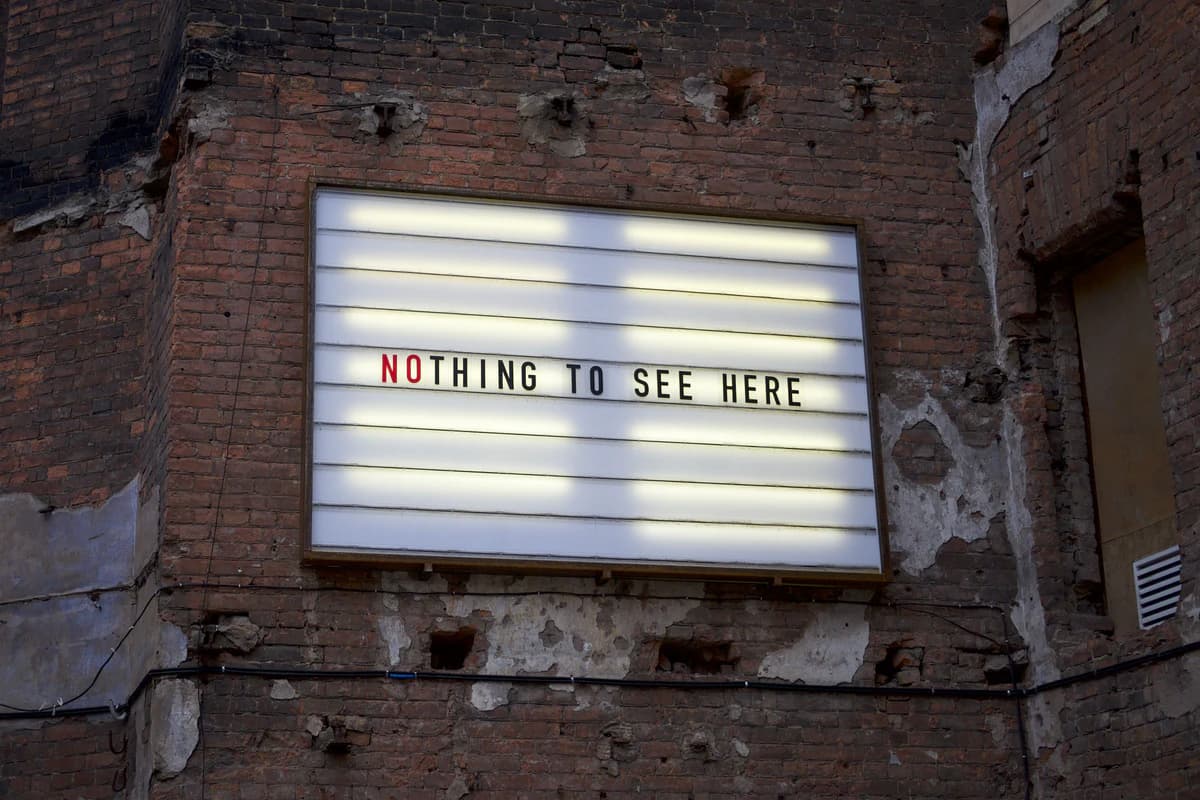
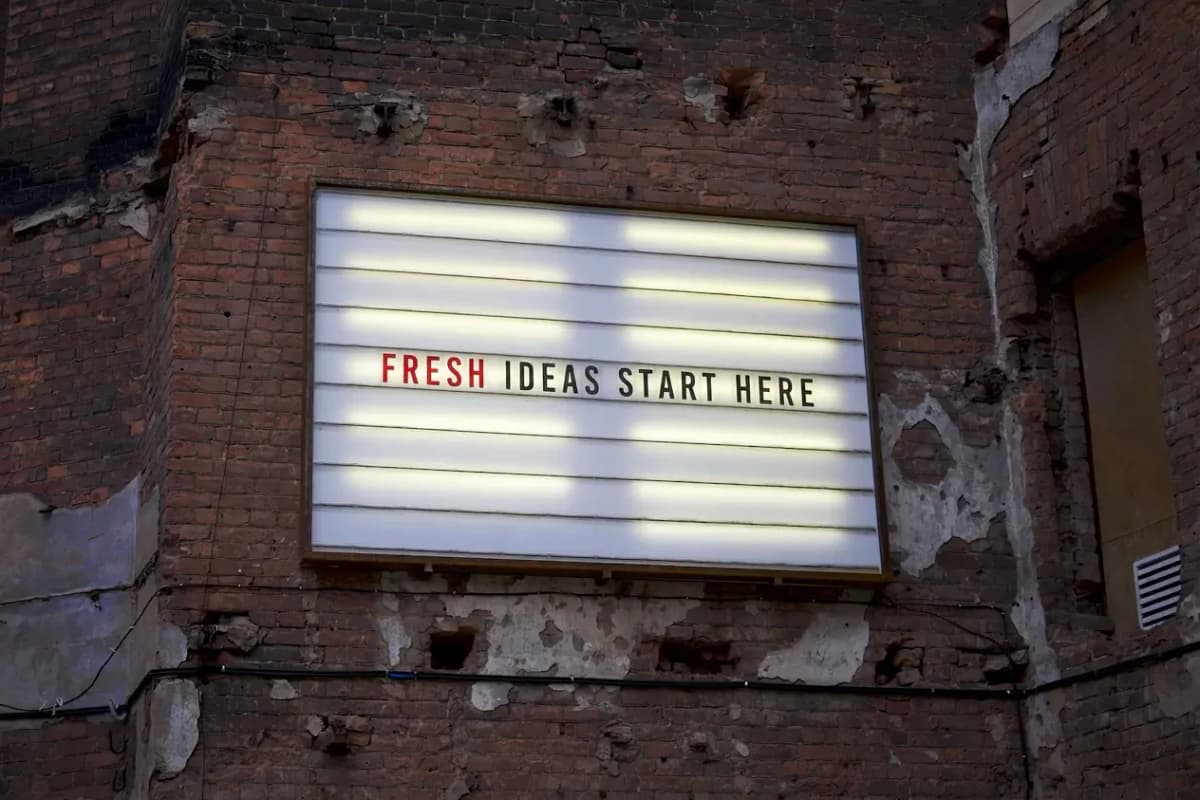
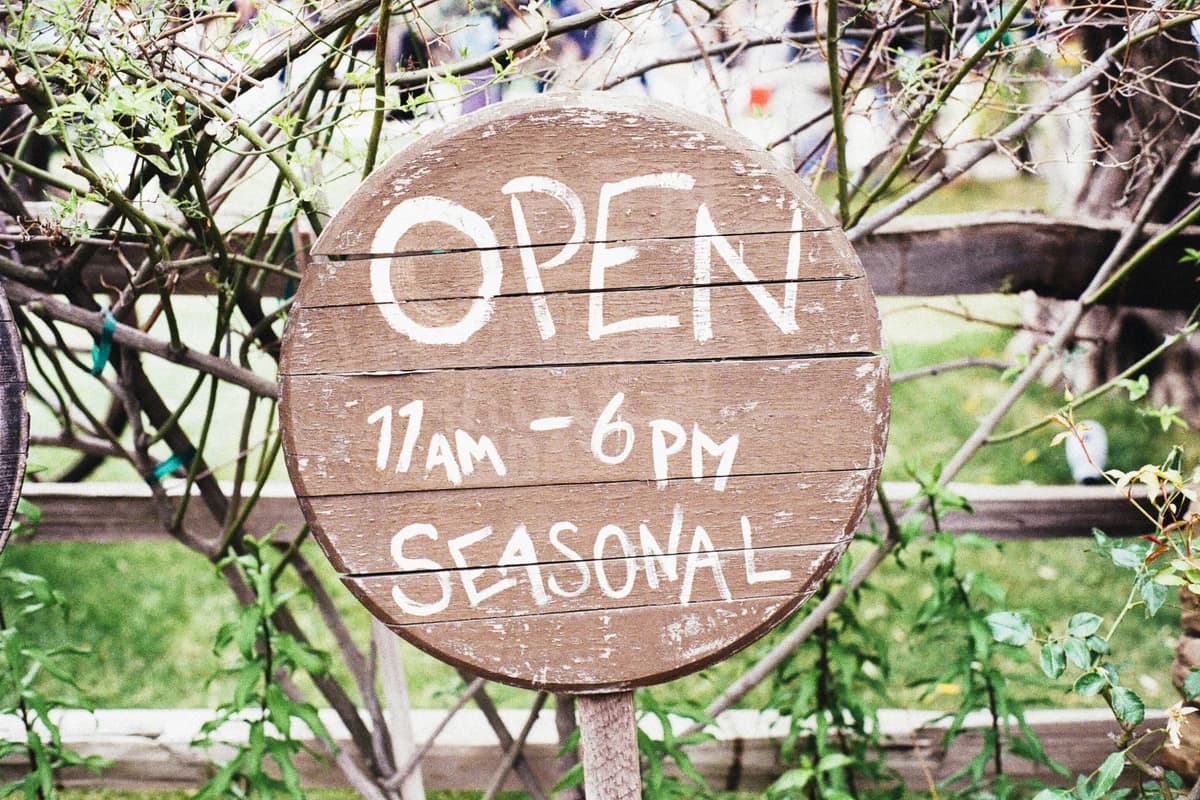
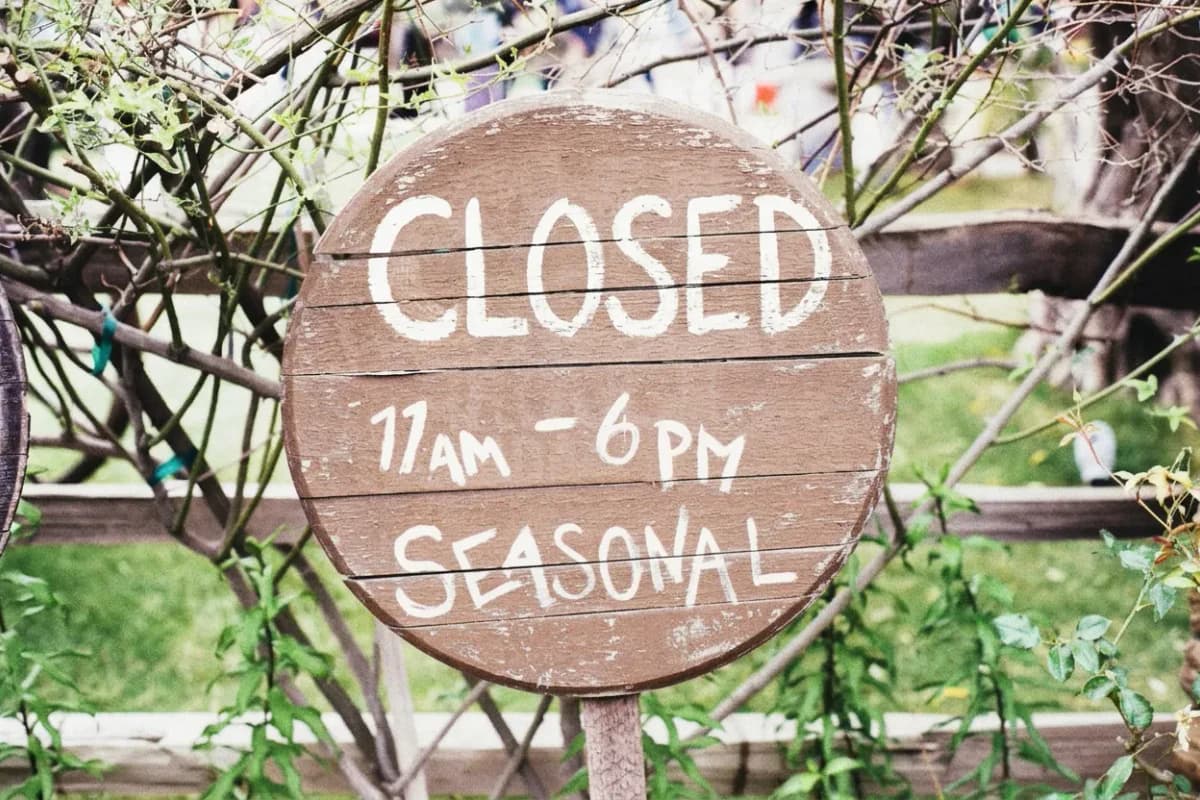
Before and after comparison
OriginalEdited in 5 seconds
Easiest text edit tool to use

It just works! (80% of the time)

Designers, marketers, and founders rely on our fast AI text swaps to keep visuals fresh.

80,000+
Active creators
100,000+
Generations completed
4.0 / 5
Success rate

Same-style proof

Repair one text area without rebuilding the whole image.

Use ImageTextEdit when the visual is already done but one word, price, headline, label, or campaign line is wrong. The goal is the same asset with cleaner text, not a new design.

Creative-use boundary

Only edit images you own or have permission to change. Do not use ImageTextEdit for IDs, receipts, certificates, grades, financial or legal records, evidence, or anything meant to deceive.

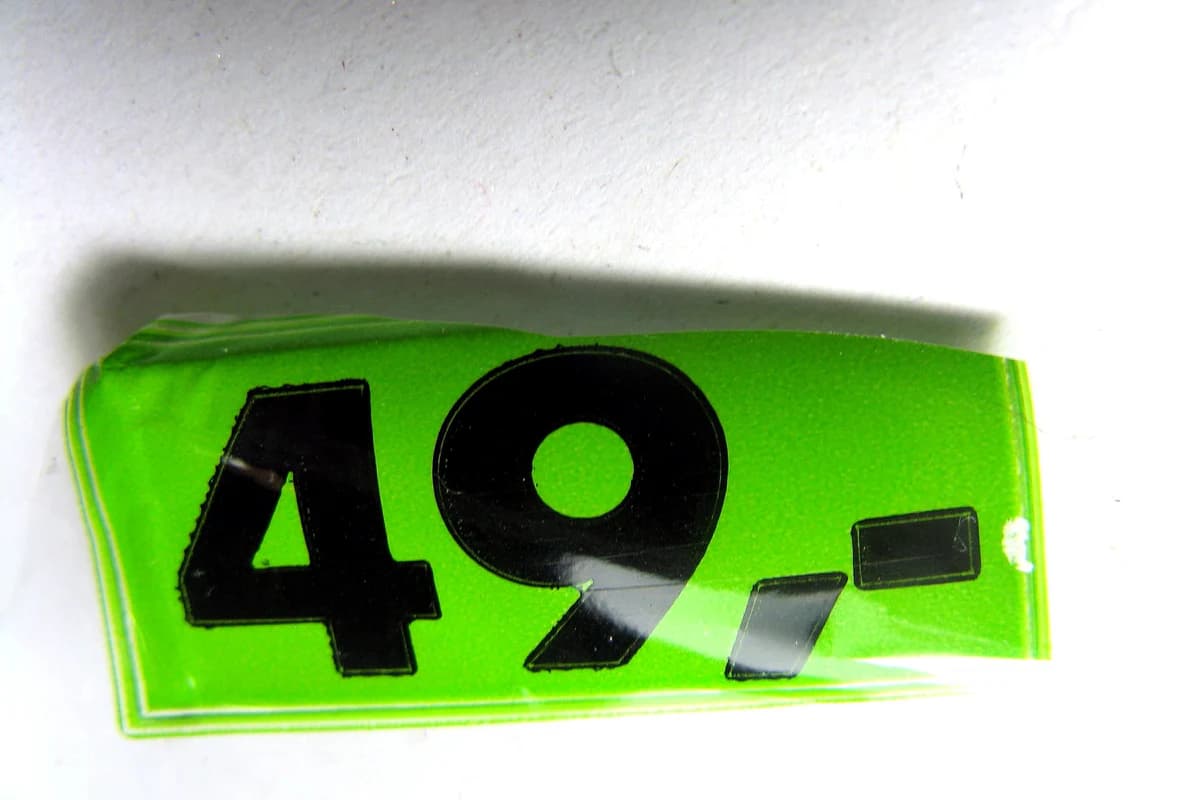
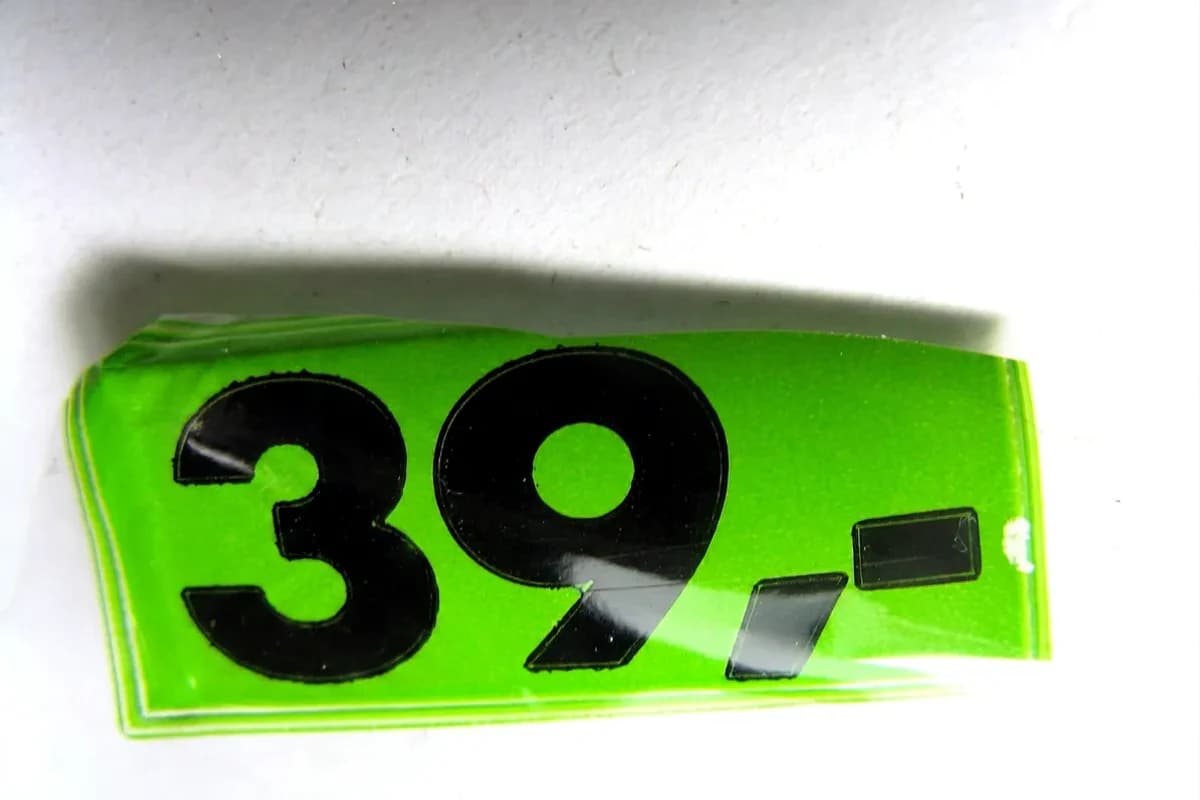
Before and after example of text repaired in a creative image

Before

Finished image with text that needs changing.

After

Replacement text blended back into the visual.

Inspect

Check the font feel, edges, shadow, color, and texture before publishing.

How to edit text in an image

This works best for creative assets where the image is already yours and the text needs a fast repair. Keep the edit focused and inspect the result before using it.

1

Upload a creative image

Start with a PNG, JPG, JPEG, or WebP file you own or have permission to edit, such as a product photo, screenshot, social post, ad mockup, poster, or generated image.

2

Mark the text to replace

Draw a selection around the words that need changing so the editor knows exactly which part of the finished image should be repaired.

3

Type the replacement text

Enter the new wording and keep the job focused on the text area. The edit works best when the rest of the visual should stay the same.

4

Generate the repaired image

ImageTextEdit rebuilds the selected area so the new text keeps the surrounding style, color, shadows, texture, and layout.

Credits buy finished image edits.

Credits are spent when you submit an edit for generation. Uploading an image, opening checkout, or choosing a credit pack does not use a credit by itself.

Start with a small pack for one quick repair, or choose a larger pack when you have several product photos, campaign visuals, screenshots, or generated images to fix.

Your uploads are used for the edit you request.

Uploaded images and replacement text may be sent to AI providers for processing and stored temporarily so the workflow can work. We do not sell your personal information.

Read the privacy policy

Start with the right creative image

Questions before you edit

Can ImageTextEdit edit text in an image with the same font?

It is built to match the original style, including nearby font feel, color, shadow, texture, and spacing. Exact font recovery is not guaranteed, so inspect the result before publishing.

What images work best?

Use clear creative images such as product photos, social posts, screenshots, ad mockups, posters, and AI-generated visuals. PNG, JPG, JPEG, and WebP files are supported.

When are credits spent?

Credits are spent when you submit an edit for generation. Uploading an image, opening checkout, or choosing a credit pack does not use a credit by itself.

What happens to uploaded images?

Uploaded images are used to create the edit you request and may be processed by AI providers. They may be stored temporarily for the workflow. We do not sell your personal information.

What should not be edited?

Do not use ImageTextEdit for IDs, receipts, certificates, grades, financial or legal records, evidence, or anything meant to deceive. Only edit images you own or have permission to change.

Built for creative assets, not records

Good fits include product photos, social posts, screenshots, ad mockups, posters, and AI-generated images. Do not edit official records, evidence, or anything where a changed image could mislead someone.