Same-style image text repair
Change Text in an Image with AI
Replace existing words while preserving the surrounding image style
Upload a finished image, select the text already baked into it, and type the replacement. ImageTextEdit rebuilds the selected area so the new word, price, date, label, or short headline fits the surrounding font feel, color, shadow, texture, and background.
Preparing an edit is free. Generation requires purchased credits; credit packs start at $1.99.
Start your edit
Upload once. Change only the text.
You can choose the image and prepare the edit before signing in.
Choose an image to start
Upload imageDrag and drop it here, or browse your files
PNG, JPG, JPEG or WebP
Up to 20MB and 4096 × 4096 pixels
Made with this editor
See how well it keeps the style
Real-photo demonstrations show the text changing while the surrounding scene and style stay intact.
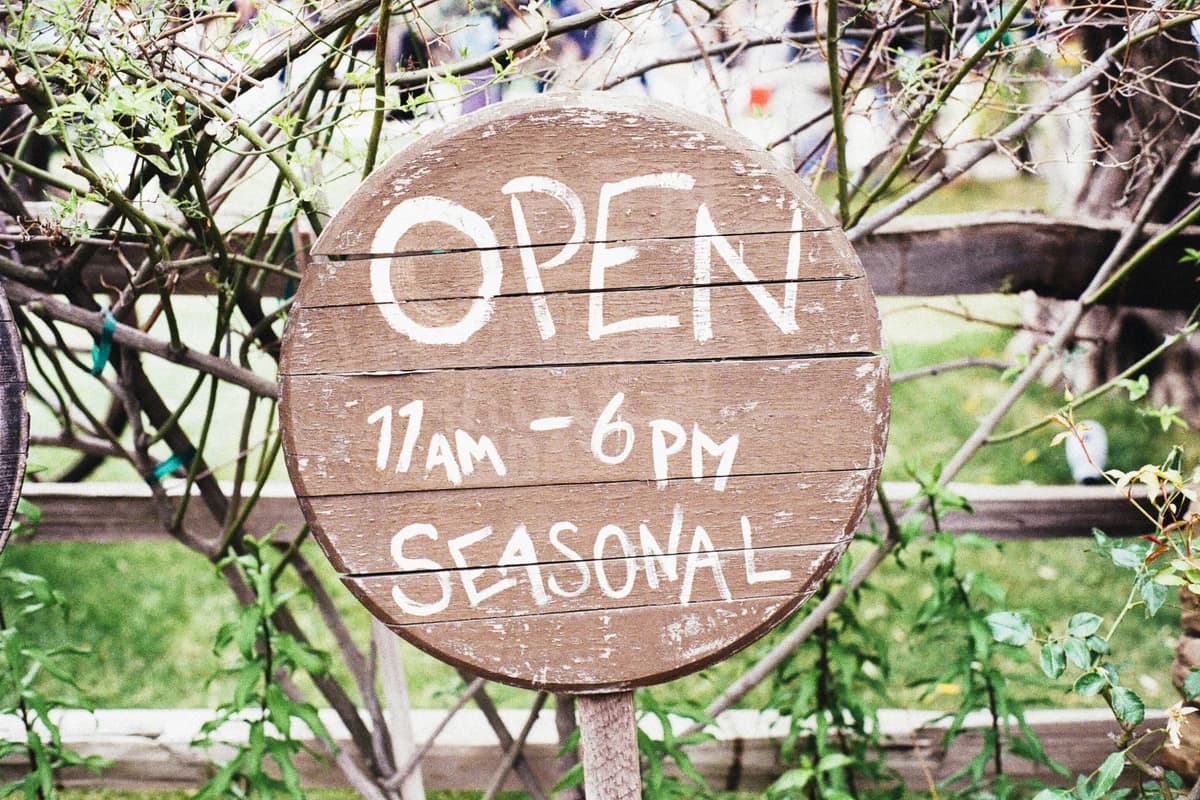
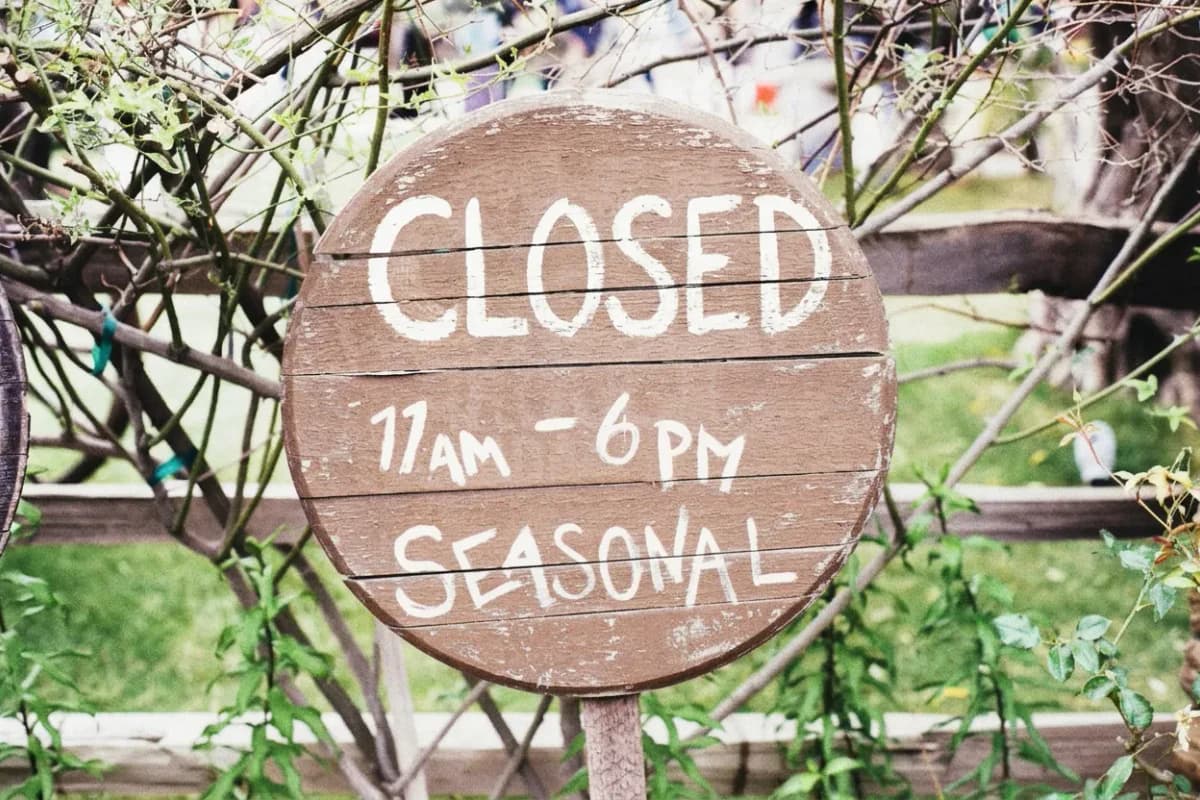
Real source, actual output
A real marquee changed one short phrase.
The Pexels-licensed source photograph reads “NOTHING TO SEE HERE”. The actual ImageTextEdit output reads “FRESH IDEAS START HERE” while the letterboard, brick wall, lighting, and framing stay intact.
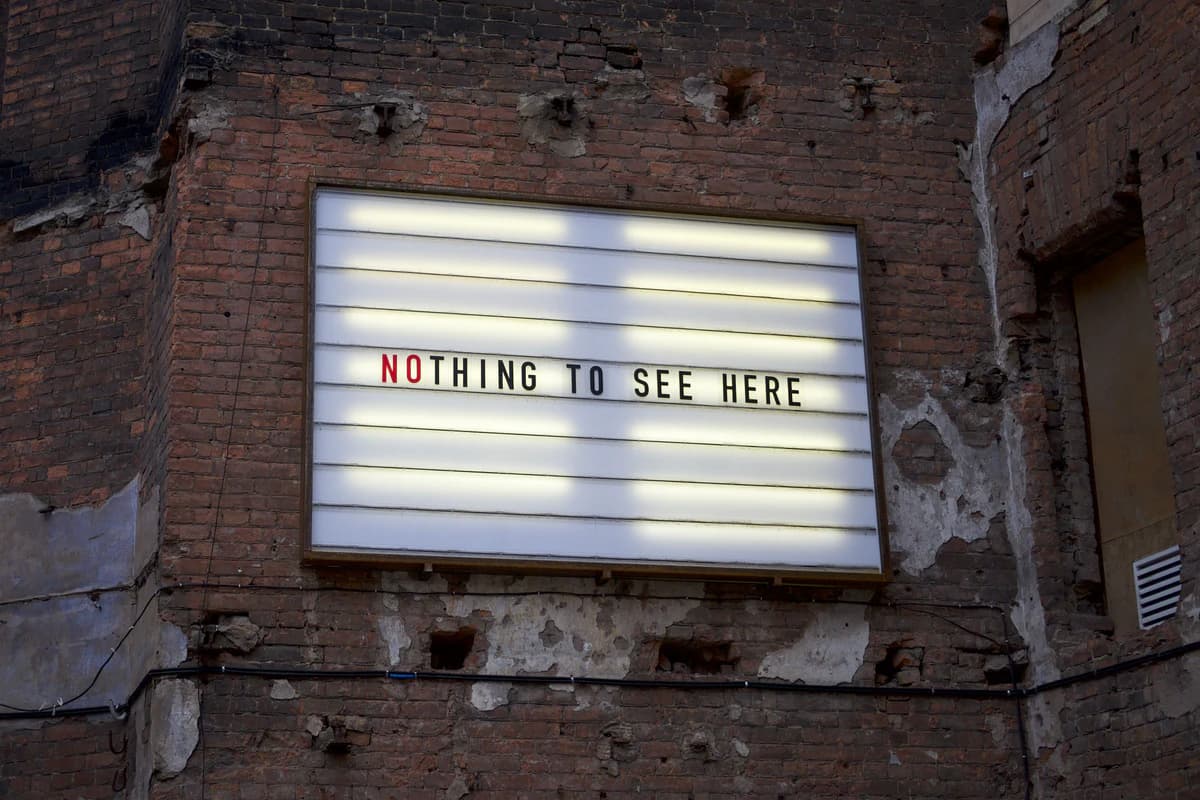 Before
The real source reads “Nothing to See Here”.
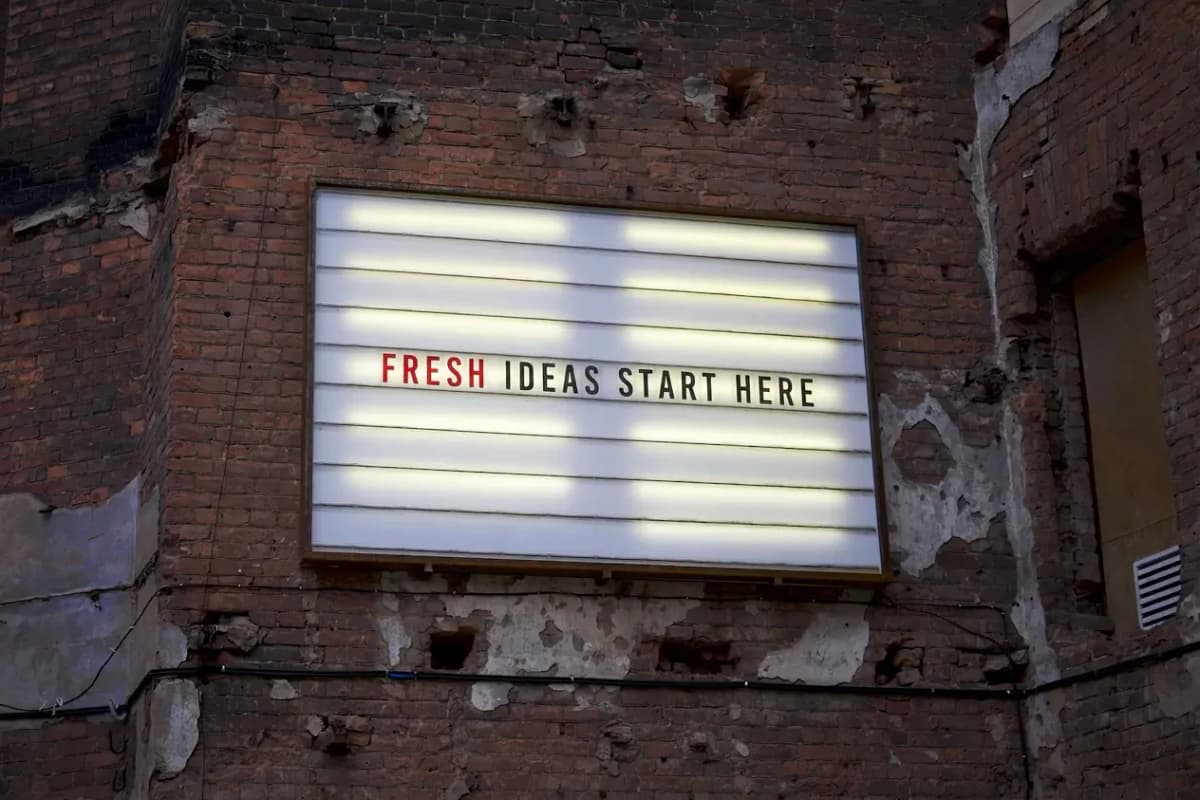 After
AfterThe actual ImageTextEdit output reads “Fresh Ideas Start Here”.
Source: Billboard on a brick wall by Erio Noen · Rights: Pexels license (website marketing use and modification permitted)
Verified product activity
A focused editor with real usage behind it
Update the text you meant to change while keeping the finished visual intact.
- 39,000+
- Accounts created
- 34,000+
- Completed edits
- 900+
- Paying customers
Replace baked-in text instead of covering it with a new layer
A normal text tool places a fresh text box on top of the picture. That can leave the old letters, background, perspective, and lighting visible underneath. This page handles the narrower replacement job: select the old text, give the exact new wording, and regenerate only that part of the finished image. It works for ordinary photos and graphics as well as AI-generated images with garbled or misspelled text.
- Replace an existing word, price, date, number, label, typo, or short headline instead of adding an obvious text box over it.
- Keep the surrounding composition, lighting, texture, background, and visible lettering style while the selected area is rebuilt.
- Repair a finished JPG, PNG, JPEG, or WebP when the source design file is missing or regenerating the whole image would waste a good result.
How to change text in an image with AI
- Upload the finished image. Start with a clear PNG, JPG, JPEG, or WebP that you own or have permission to edit. Product images, posters, ads, social graphics, package mockups, and AI-generated visuals are good fits.
- Select only the text to replace. Draw a tight box around the old word, typo, label, date, price, number, or short headline. Leave nearby faces, products, borders, icons, and artwork outside the selection.
- Type the exact replacement. Enter the new text and keep it close to the original length when spacing matters. Add a short style note when the letters are glowing, printed, embossed, handwritten, curved, or angled.
- Generate and inspect the match. Compare the result with the original. Check the spelling, font feel, color, shadow, texture, spacing, and nearby background. If the match is weak, retry with a tighter selection or shorter wording.
Common edit scenarios
Change a price or date
Before: a finished product graphic, menu image, or event poster has an outdated price or date.
After: the new number or date sits on the same photographed or designed surface.
Short number changes are the clearest fit when the source is sharp and the selection is tight.
Replace a label or product name
Before: a package concept, product photo, or campaign visual contains the wrong label or name.
After: the replacement follows the same print texture, perspective, edges, and lighting.
Similar-length wording usually gives the model more room to preserve the original layout.
Fix garbled AI image text
Before: an AI-generated poster, book cover, thumbnail, or social post has one unreadable word.
After: the corrected word is rebuilt into the scene without discarding the useful composition.
Repair when the image is already good. Regenerate when the layout, characters, or most of the text are wrong.
Where the match can fail
- Very tiny, warped, curved, melted, blurry, or partly hidden letters may not become clean readable text in one pass.
- Long paragraphs, dense menus, and full pages of text usually need smaller separate edits or a layered design tool.
- ImageTextEdit recreates the visible font style; it does not identify, recover, or install the exact original font file.
- Use a normal text tool when you want to add a new caption. Use this page when existing text must be removed and replaced.
- Regenerate the source image when the composition, characters, layout, or most of the wording is wrong.
Acceptable use
Use ImageTextEdit to update creative images, product visuals, mockups, posters, ads, thumbnails, social graphics, and AI-generated assets you own or have permission to edit. Do not use it to alter records, evidence, IDs, receipts, certificates, grades, financial materials, private messages, legal materials, or anything intended to deceive.
Supporting guides
- Edit text in image
Use the broader image text editor for product photos, posters, social graphics, and AI images.
- Change text in image
Replace one wrong price, date, number, label, typo, or short headline in a finished image.
- Same-font editing guide
Learn how to select text and judge whether the generated letters match the original style.
- Update text in app screenshots
Use the screenshot page when an app, product, or walkthrough image has UI text to update.
- Repair or regenerate an AI image
Use the decision guide when you are unsure whether one focused text replacement can save the image.
FAQ
Can AI change text that is already inside an image?
Yes. Upload the image, select the existing text, type the replacement, and generate a new version. The model rebuilds the selected area instead of placing a standard text box over the old words.
Can I replace text in an AI-generated image?
Yes, when the image is otherwise worth keeping. Focus on one garbled word, label, price, date, or short headline. Regenerate when the composition, characters, layout, or most of the text is broken.
Will the replacement keep the same font?
The model recreates the visible font feel, color, edges, shadow, texture, spacing, and perspective around the selection. It does not guarantee or recover the exact original font file.
What image text changes work best?
Short words, labels, prices, dates, numbers, product names, poster headlines, book-cover titles, and social graphic copy work best. Clear images and similar-length replacement text improve the odds of a clean match.
Should I replace the text or add a text box?
Replace it when old letters must disappear and the background needs rebuilding. Add a text box when you are creating a new caption and do not need to match or remove anything already in the image.
What should I avoid editing?
Do not use the page to fake documents, records, messages, IDs, receipts, grades, legal evidence, or financial materials. The safe use case is honest creative repair.
Related Tools
Explore more ways to edit text in your images with our AI-powered tools.