Screenshot maintenance
Repair one stale label. Recapture a changed screen.
A focused text repair can keep documentation current without recreating a hard-to-reach state. The rule is simple: repair copy, recapture product truth.
Best for one short, authorized text change on a screen that is otherwise still accurate.
Decide before editing
Repair
The screen is still true. Only one short, authorized text region is stale.
Recapture
The layout, control, workflow, permission, or product state has changed.
If a reader would look in the wrong place, take a fresh screenshot.
01
One real product screen. One contained change.
This project-owned ImageTextEdit capture and actual production output show the boundary of a good repair: one stale interface label changes, while the surrounding screen stays intact.
Real source, actual output
The earlier ImageTextEdit label changed from “Edit screenshot text” to the current “Screenshot text editor” wording through the live editor path.
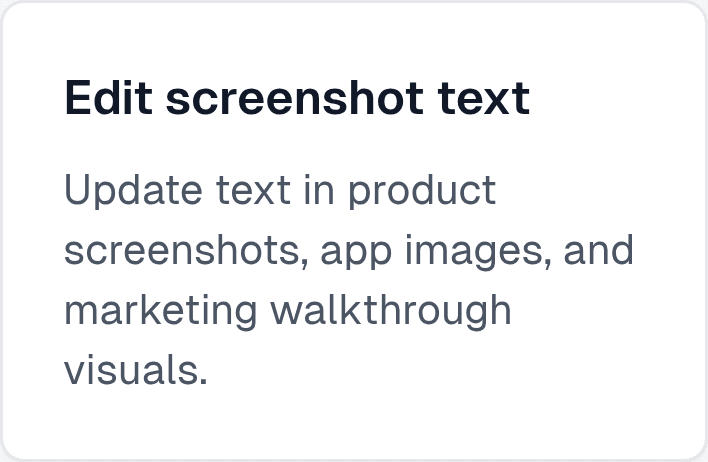 Before
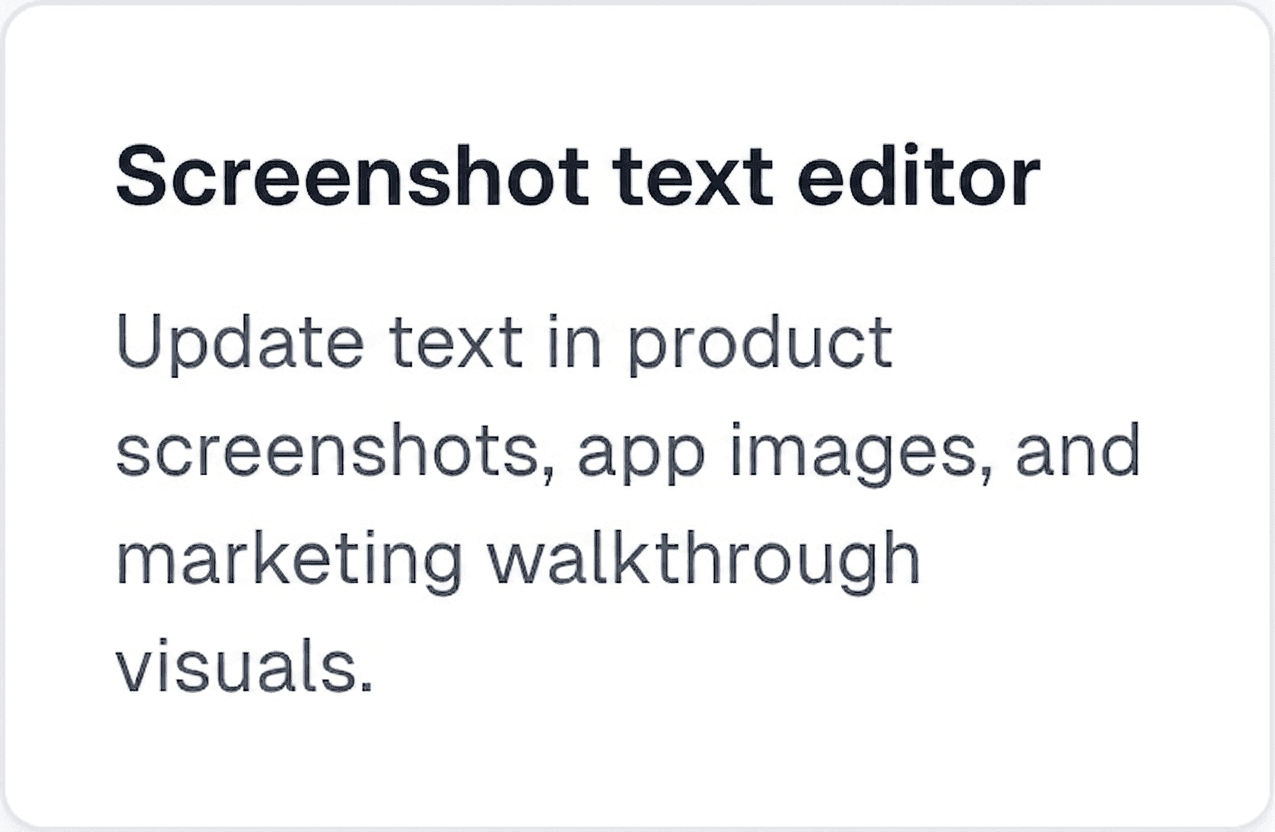 After
AfterSource: ImageTextEdit interface capture by ImageTextEdit · Rights: Project-owned rights record (commercial use documented by ImageTextEdit)
Opens the verified source, selection, and replacement text in the editor. Nothing runs until you choose Generate.
- Changed
- One interface label: Edit screenshot text to Screenshot text editor.
- Stayed true
- The card, supporting copy, spacing, border, and background.
- Decision
- Repair one text region. Recapture if anything else changed.
02
Use the 30-second rule.
Repair only when all four answers are yes. One no is enough to make a fresh capture the honest choice.
- 1Would a reader still find every visible control in the same place?
- 2Is the change limited to text, not behavior, permissions, or account state?
- 3Can a reviewer compare the result with the live product and call it accurate?
- 4Do you own the screenshot or have permission to update it?
Copy the rule with its canonical source for a guide, checklist, or editorial note.
03
Change the smallest truthful region.
A repair stays safe when the original remains available and the result is reviewed against the live product.
- 01
Keep the source
Preserve the original screenshot and note its product version or capture date.
- 02
Name the reason
Record that this is a copy repair, not a replacement for a changed interface.
- 03
Select one region
Avoid icons, avatars, controls, and neighboring interface details.
- 04
Compare both versions
Check baseline, spacing, nearby controls, alt text, captions, and written steps.
For a contained change, use the focused screenshot text editor. Work on a copy, one region at a time.
04
Recapture when the screen itself changed.
Text repair cannot make an obsolete interface truthful, even when it can make an individual label look current.
05
Do not use repair to change evidence.
Screenshot repair is for owned documentation, product demos, help centers, and marketing assets.
Do not alter private messages, transactions, account records, grades, legal material, or screenshots presented as evidence. When an image records what happened rather than explains how a product works, preserve the original.
One stale label, and the rest of the screen is still true?
Repair a copy, then compare the result with the current product before publishing it.
Open the screenshot text editor