Same-style image text repair
Change Text in Image
Replace one wrong word, number, label, date, price, or headline
Upload a finished image, select the existing text, type the replacement, and generate a version where the changed text blends back into the original style. ImageTextEdit is for focused repairs on images you own or have permission to edit, especially when rebuilding the whole design would take longer than fixing the text.
Preparing an edit is free. Generation requires purchased credits; credit packs start at $1.99.
Start your edit
Upload once. Change only the text.
You can choose the image and prepare the edit before signing in.
Choose an image to start
Upload imageDrag and drop it here, or browse your files
PNG, JPG, JPEG or WebP
Up to 20MB and 4096 × 4096 pixels
Made with this editor
See how well it keeps the style
Real-photo demonstrations show the text changing while the surrounding scene and style stay intact.
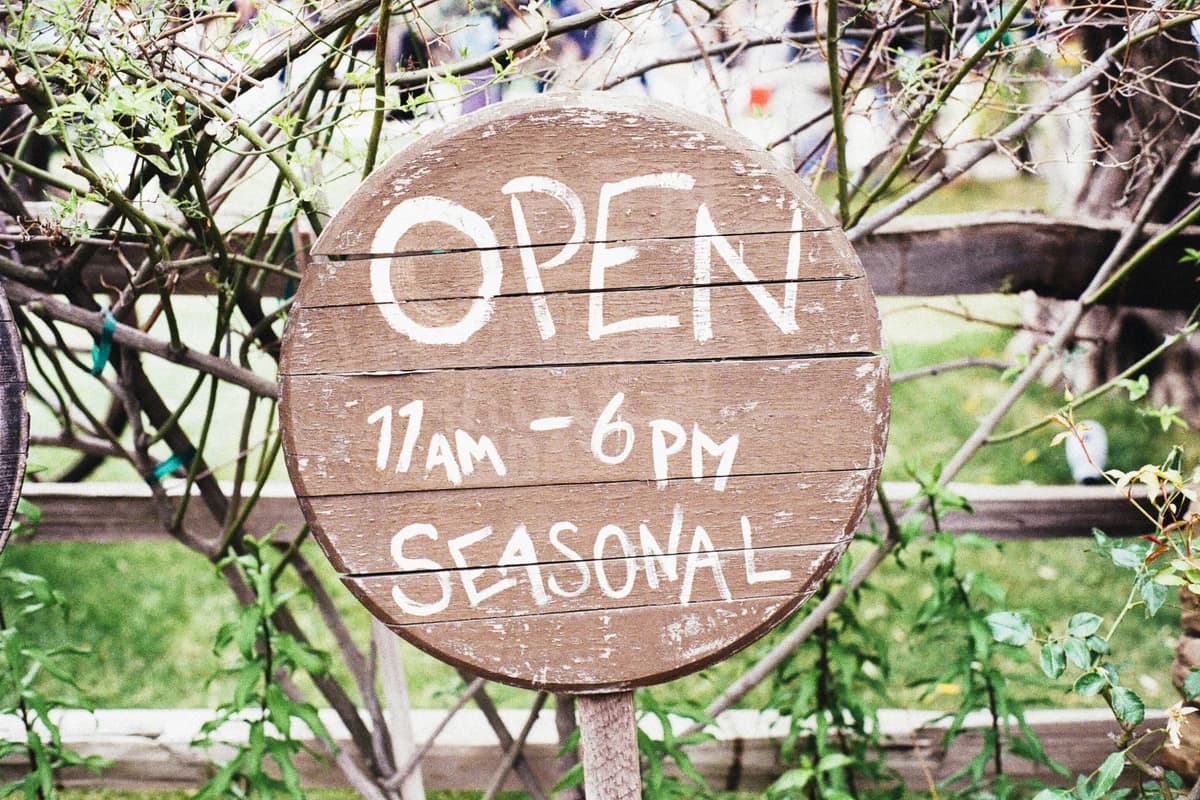
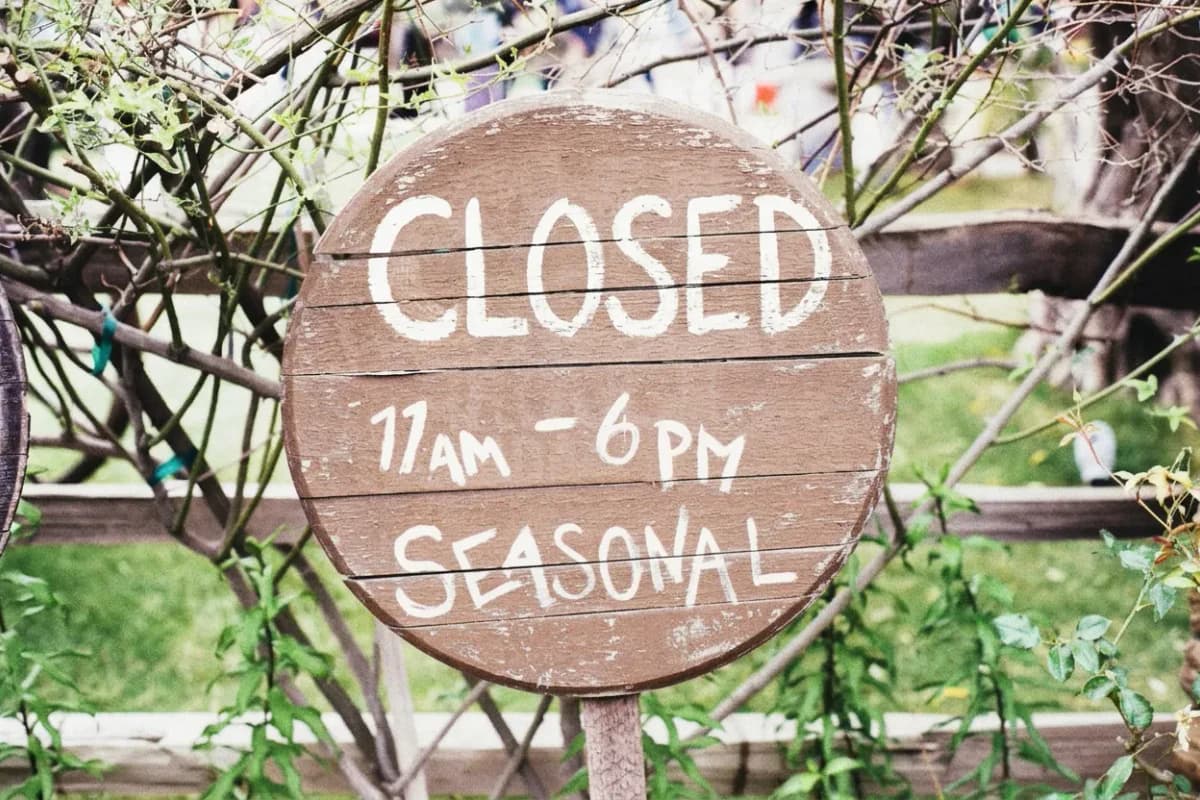
Real source, actual output
A real marquee changed one short phrase.
The licensed source photograph reads “NOTHING TO SEE HERE”. The actual ImageTextEdit output reads “FRESH IDEAS START HERE” while the letterboard and brick wall stay intact.
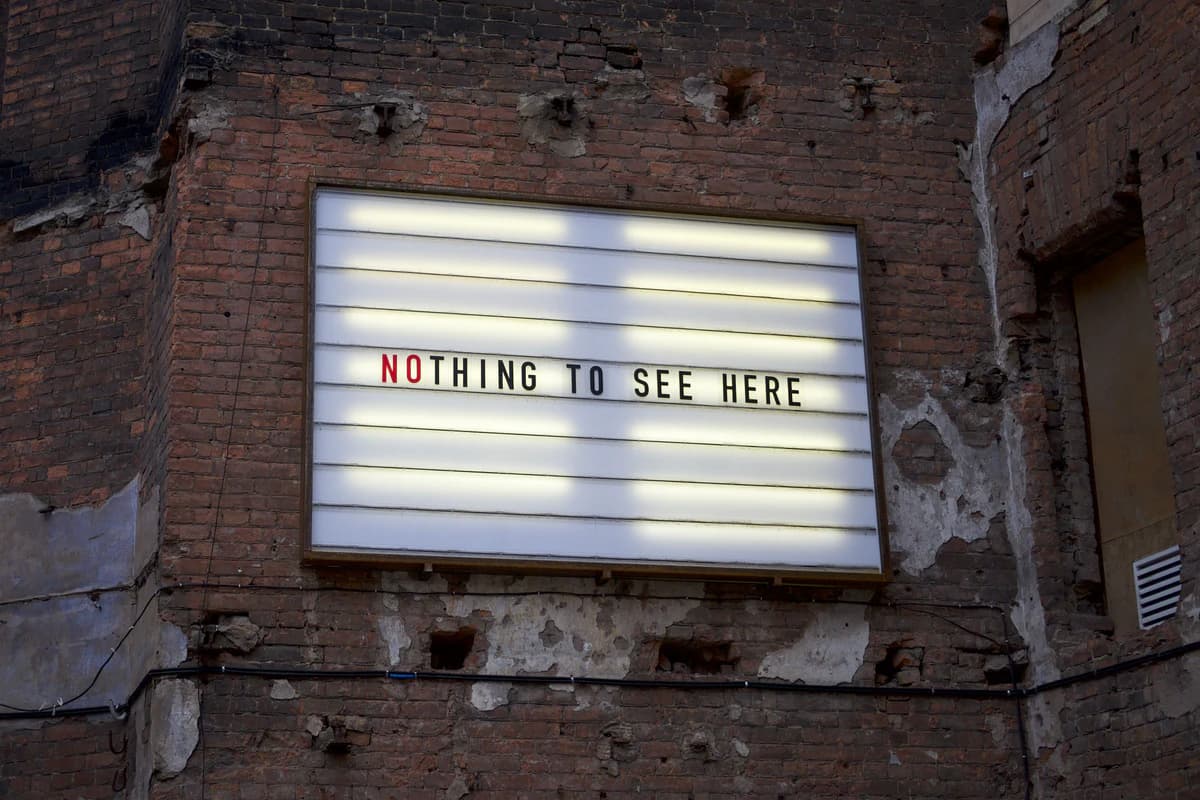 Before
The real source reads “Nothing to See Here”.
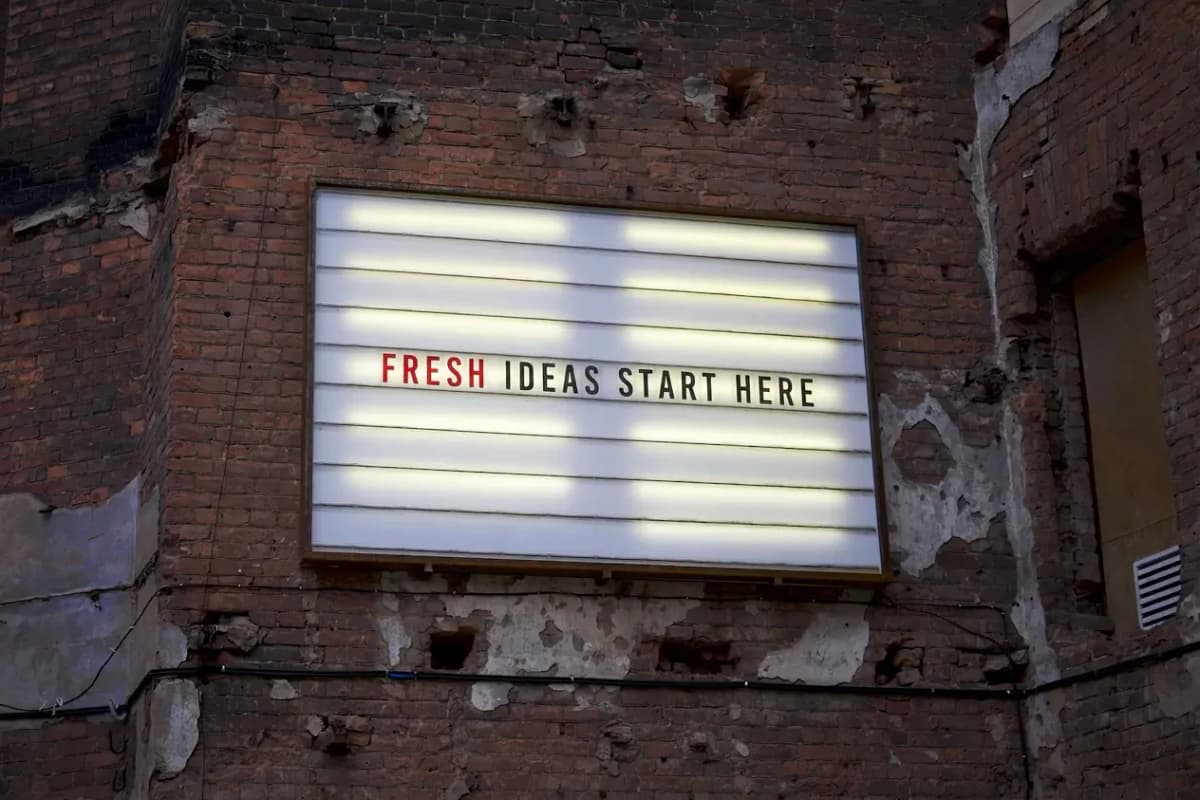 After
AfterThe actual ImageTextEdit output reads “Fresh Ideas Start Here”.
Source: Billboard on a brick wall by Erio Noen · Rights: Pexels license (website marketing use and modification permitted)
Verified product activity
A focused editor with real usage behind it
Update the text you meant to change while keeping the finished visual intact.
- 39,000+
- Accounts created
- 34,000+
- Completed edits
- 900+
- Paying customers
Replace the text, not the whole image
This page is for the moment when the image is already usable but the words baked into it are wrong. Common paid edits are practical and short: a product price moved, a date changed, a number is off, a package label needs a new word, a typo slipped through, or an AI-generated headline has one broken phrase.
- Change short text in finished images without reopening Photoshop, Figma, Canva, or the original source file.
- Keep nearby font style, color, edges, shadows, lighting, and background texture as the selected text is regenerated.
- Use the same workflow across product photos, social graphics, ads, posters, screenshots, labels, and AI-generated images.
How to change text in an image
- Upload the image you want to repair. Start with a clear PNG, JPG, JPEG, or WebP that you own or have permission to edit. Product photos, campaign images, social posts, posters, screenshots, labels, and AI-generated visuals are good fits.
- Select only the old text. Draw a tight box around the word, price, date, number, label, typo, or headline you want to replace. Keeping the selection focused helps the model preserve the surrounding design.
- Type the replacement. Enter the exact new text and keep it close in length when spacing matters. Add short style notes if the text has a visible color, glow, shadow, perspective, or printed texture.
- Generate and compare the result. Inspect the changed text against the original image. If the match is not clean enough, try a tighter selection, clearer source image, or shorter replacement.
Common edit scenarios
Change a price or date
Before: a finished product graphic still says "$39" or "July 10".
After: the image says "$49" or "July 17" with the same color, spacing, and texture.
This is the strongest fit when the old and new text are short and the source image is sharp.
Replace a label or number
Before: a package mockup, menu image, or product photo has the wrong label or item number.
After: the corrected label or number blends into the same printed or photographed surface.
Works best when the replacement is similar in length and the surrounding letters are readable.
Fix a typo or short headline
Before: an ad, poster, social image, or AI-generated graphic has one misspelled word.
After: the corrected word keeps the original headline style instead of forcing a full redesign.
Use this when changing one phrase is faster than rebuilding or regenerating the whole asset.
Where the match can fail
- Very tiny, blurry, compressed, curved, or partly hidden text may not match cleanly.
- Long paragraphs and dense text blocks usually need smaller edits or a design tool.
- ImageTextEdit recreates the visual style; it does not recover or install the original font file.
- Do not use this workflow to alter records, evidence, IDs, receipts, grades, legal materials, or anything meant to deceive.
Acceptable use
Use ImageTextEdit to change text in creative images, marketing assets, product visuals, screenshots, posters, AI-generated images, and personal graphics you own or have permission to edit. Do not use it to alter official records, private messages, financial materials, academic records, identity documents, legal evidence, or anything intended to mislead someone.
Supporting guides
- Edit text in image
Use the broader image text editor page for the same-style finished-image repair job.
- Same-font editing guide
Learn how to select text and judge whether the changed letters match the original style.
- AI-image text editor
Fix misspelled or garbled words in AI-generated graphics.
- Change text in product screenshots
Change labels, prices, CTAs, and short copy inside owned product screenshots.
FAQ
Can I replace text in an image online?
Yes. Upload an image, select the existing text, type the replacement, and generate an edited version where the new words are rebuilt into the image style.
What text changes work best?
Short changes work best: prices, dates, numbers, labels, typos, product names, button text, and short headlines. Long paragraphs, tiny text, and blurry images are harder to match.
Will it keep the same font?
The model recreates the visible style around the selected text, including font feel, color, shadow, texture, and spacing. It does not guarantee the exact original font file.
Can I change text in a photo?
Yes, when the photo is yours or you have permission to edit it. Clear product photos, packaging labels, signs, and creative images tend to work better than low-resolution or motion-blurred photos.
What should I avoid changing?
Do not change text in receipts, IDs, certificates, grades, legal records, financial records, private messages, or evidence. The safe use case is honest creative repair, not deception.
Related Tools
Explore more ways to edit text in your images with our AI-powered tools.