Edit Text in Image with AI Magic
Upload your image, select area you want to edit, type new text, and watch AI replace the text while maintaining the original style and context. It's better than Photext, Canva or Fotor and free!
Upload your image
Drag and drop an image, or click to browse
Supports PNG, JPG, JPEG, WebP
Max file size: 20MB
Max resolution: 4096x4096
See the Magic
It's easy and quick to edit text in images with ImageTextEdit!
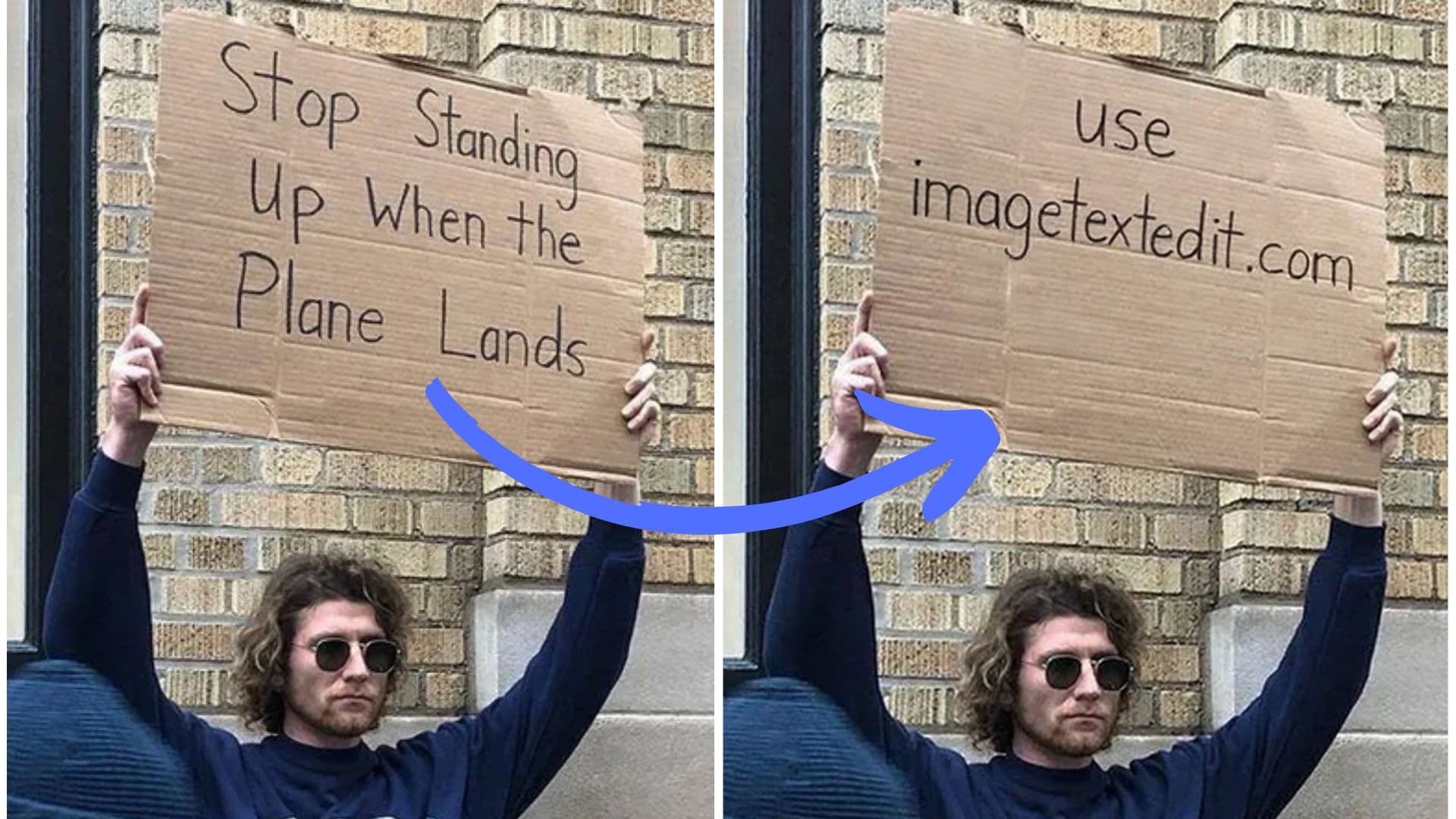
It just works! (80% of the time)
Designers, marketers, and founders rely on our fast AI text swaps to keep visuals fresh.
- 80,000+
- Active creators
- 100,000+
- Generations completed
- 4.0 / 5
- Success rate
Why Edit Text in Image with ImageTextEdit
Editing text in an image used to require expensive software and hours of manual work. Designers would painstakingly clone backgrounds, match fonts, and blend layers to make a simple text change look natural. ImageTextEdit changes that by using generative AI to handle the heavy lifting for you.
When you edit text in image files with our tool, the AI analyzes the surrounding pixels—font style, color gradients, shadows, textures, and lighting—and regenerates the selected area with your new text. The result blends seamlessly with the original image, often indistinguishable from a fresh design.
Save Hours of Editing Time
What once took 30 minutes in Photoshop now takes seconds. Upload, select, type, and download—no layers, no masks, no complex tools.
No Design Skills Required
You do not need to know typography or color theory. The AI handles font matching and background blending automatically.
Works on Any Device
Edit text in image files from your laptop, tablet, or phone. The browser-based editor requires no downloads or installations.
Professional-Quality Results
AI-generated edits preserve shadows, textures, and lighting so your changes look native to the original image.
How to Edit Text in Image
Follow these four simple steps to edit text in any image. The entire process takes under a minute for most images.
Upload Your Image
Drag and drop any PNG, JPG, or WebP file into the editor. ImageTextEdit accepts photos, screenshots, scanned documents, social media graphics, and AI-generated images.
Select the Text Area
Click and drag to draw a selection box around the text you want to change. The selection helps the AI understand exactly which part of your image needs editing.
Enter Your New Text
Type the replacement text in the input field. You can include style notes if you want the AI to adjust the look—for example, "make it bold" or "use a handwritten style."
Generate and Download
Click Generate to let the AI rebuild the image with your new text. Once you are happy with the result, download the finished image in full resolution.
That is all it takes. The AI does the complex work of analyzing fonts, colors, and textures behind the scenes. You focus on what the text should say, and ImageTextEdit makes it look like it was always there.
When to Edit Text in Image Files
People use ImageTextEdit for a wide range of personal and professional tasks. Here are some of the most common use cases.
Marketing and Social Media
Update promotional graphics with new dates, prices, or campaign slogans without recreating the entire design. Edit text in image posts to localize content for different markets.
Documents and Screenshots
Correct typos in scanned documents, update outdated information on screenshots, or redact sensitive details before sharing. Edit text in image files quickly without re-scanning.
Memes and Creative Projects
Customize meme templates with your own captions, edit text in image art for personal projects, or create variations of viral content.
E-commerce and Product Photos
Change product labels, update pricing on promotional banners, or translate packaging text for international listings without a new photoshoot.
Certificates and Awards
Personalize certificate templates with recipient names, update dates on awards, or correct spelling errors on official-looking documents.
AI-Generated Images
Fix garbled or misspelled text in AI art. Many AI image generators struggle with text—use ImageTextEdit to correct those imperfections.
Frequently Asked Questions
How do I edit text in an image without Photoshop?
ImageTextEdit lets you edit text in image files directly in your browser. Upload the image, select the text region, type your replacement, and click Generate. The AI handles font matching, shadows, and background blending automatically—no Photoshop skills required.
Can I edit text in image files on my phone?
Yes. ImageTextEdit works on mobile browsers. Open the site on your phone, upload a photo from your camera roll, draw a selection, and generate the updated image. The responsive editor adjusts to smaller screens.
Does the AI match the original font when I edit text in image?
The AI analyzes the surrounding typography and regenerates the text area to blend naturally. It matches font weight, color, shadows, and texture so the new text looks native to the original image.
What image formats can I edit text in?
You can edit text in image formats including PNG, JPG, JPEG, and WebP. The editor accepts photos, screenshots, scanned documents, posters, social media graphics, and AI-generated images.
Is there a free option to edit text in image online?
New users receive free credits to try the tool. Additional credits are available for purchase if you need to edit text in image files regularly or in bulk.
Can I edit text in image files with handwriting or stylized fonts?
Yes. The AI can reproduce handwritten styles, decorative fonts, and neon effects. For best results, keep your selection tight around the text and mention any style notes in the prompt.
How is ImageTextEdit different from other image text editors?
Unlike basic overlay tools, ImageTextEdit uses generative AI to rebuild the text region pixel by pixel. This means shadows, textures, and lighting stay consistent, producing results that look professionally edited.
Explore More Tools
ImageTextEdit offers specialized pages for different editing needs. Explore these related tools to find the perfect solution for your project.