Canva Grab Text alternative
A Canva Grab Text alternative for one focused image repair.
Canva turns recognized image text into an editable layer inside a broad design workspace. ImageTextEdit asks you to mark one region, type the replacement, and review a newly rendered image. The better choice depends on what you need to control next.
Prepare the upload, selection, and replacement before generation. Purchased credits are required to generate.
Real source, actual output
A public-domain price sign changed from 49 to 39 with ImageTextEdit. This is actual product output, not a Canva head-to-head test.
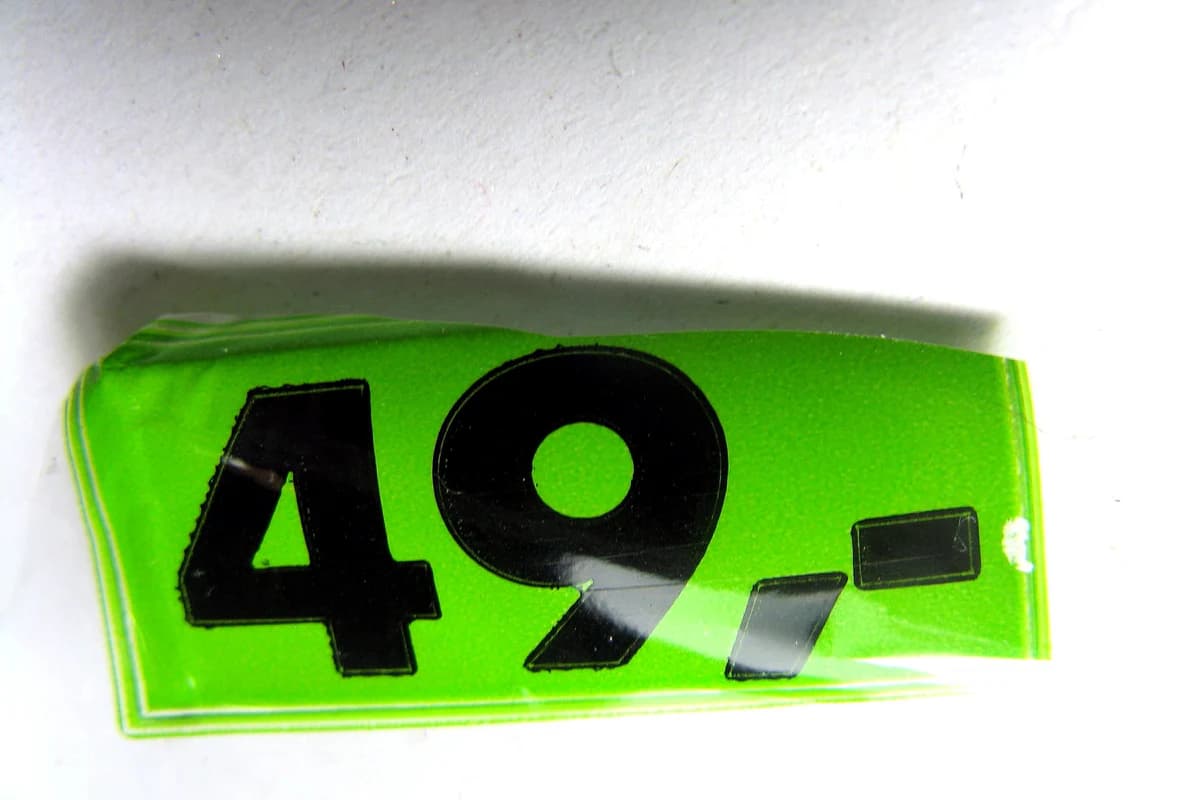 Before
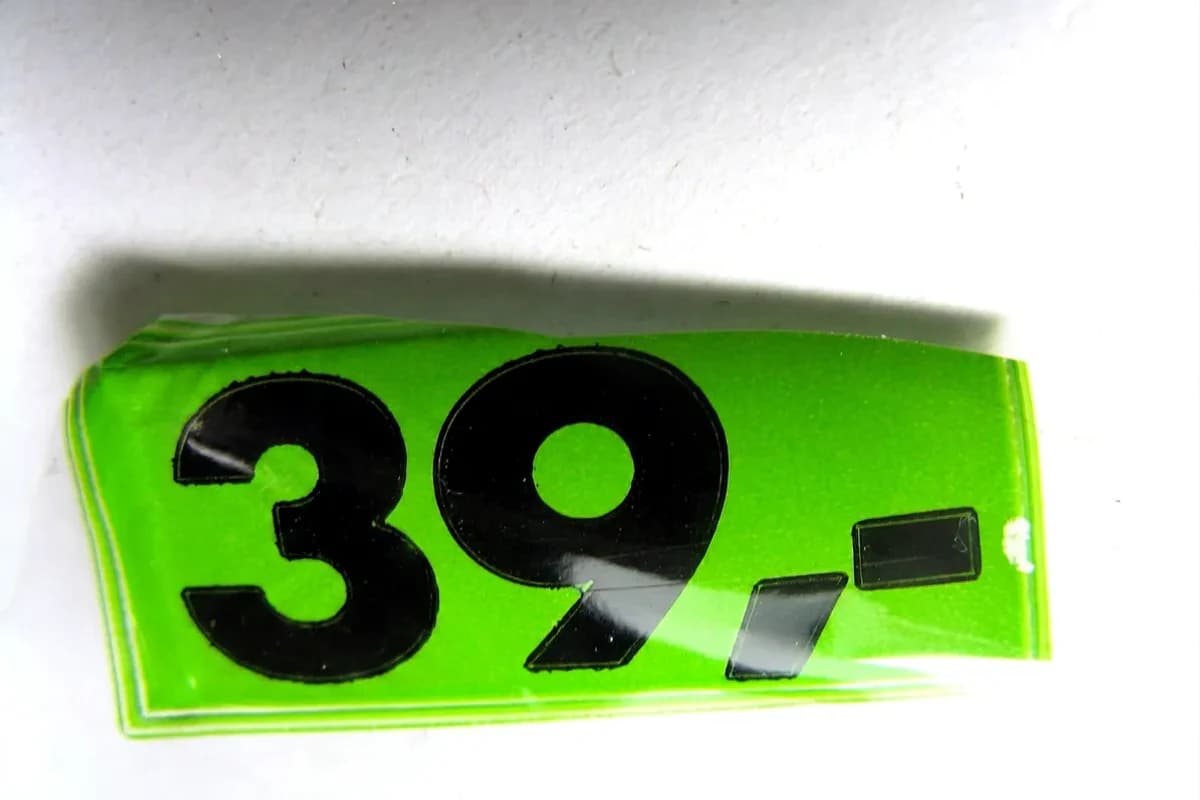 After
AfterSource: Price.jpg by Paolo Neo · Rights: Public domain (commercial use permitted by the author)
01
The short answer: choose the output you need.
Canva Grab Text and ImageTextEdit both address text that is already part of an image, but they do not give you the same kind of result.
ImageTextEdit
Choose it when one short region is wrong, the rest of the finished image should stay as it is, and a new raster image is the output you want.
Canva Grab Text
Choose it when you want Canva to recognize the words, turn them into an editable layer, and continue adjusting the typography or wider design.
This is not a claim that one product is universally better. It is a narrower comparison for a common job: you have a JPG, PNG, screenshot, product photo, poster, or AI-generated image, and one price, date, label, typo, or short headline needs to change. The original design file may be missing, so you cannot simply edit the live text layer that created the image.
If you still have the editable Canva design, use it. Editing the original text element is more predictable than asking any AI tool to reconstruct text from pixels. You keep the exact font choice, spacing, alignment, effects, and future editability. An alternative is useful when the finished image is the only practical source or when you want a smaller workflow for one contained correction.
02
Canva Grab Text is part of a larger design workflow.
Canva's current public documentation describes Grab Text as an AI tool that turns selected words inside an image into an editable layer.
Canva says you can select words in an uploaded image, type the replacement, and then customize the new text. Its public page lists font, size, color, effects, animation, and position as controls available after the text becomes editable. It also presents Grab Text beside Canva's wider photo and design tools, including background removal, resizing, and other image edits. That broader canvas is the main reason to choose Canva when the text change is one step in a larger composition job.
The same source sets useful limits. Canva says Grab Text works best when the text is straight rather than skewed. It says an exact font match depends on that font being available in its library, otherwise the product chooses a close font. Canva also notes that some enhanced formatting may not be recognized and that small text remnants can require cleanup. These are not reasons to avoid the feature. They are review points that matter when the source has perspective, decorative lettering, small copy, or unusual effects.
Canva capabilities above come from its official Grab Text feature page checked on August 6, 2026. Product features can change, so recheck Canva's page when a specific control or export matters to your decision.
03
Compare the workflow, not a feature count.
The fastest choice comes from the job you need to finish. This table compares the public workflows as checked on August 6, 2026.
| Question | ImageTextEdit | Canva Grab Text |
|---|---|---|
| How do you locate the text? | Draw a selection around one complete text region. | Select text that Canva recognizes inside the image. |
| What happens next? | The selected pixels are generated again with your replacement. | The selected words become an editable text layer. |
| What can you tune directly? | The region, replacement wording, and Standard or Pro generation mode. | Font, size, color, position, effects, animation, and wider design settings. |
| What is the intended scope? | One contained correction inside an otherwise finished image. | Text editing inside a broader visual design workspace. |
| What result do you keep? | A finished raster image plus the saved generation in History when signed in. | An editable Canva design that can be exported in several formats. |
| How do you pay? | New accounts start with zero credits; generation uses purchased credits. | Check Canva's current plan and feature availability for your account. |
| What should you inspect? | Spelling, style, baseline, nearby detail, and the full selected region. | Recognition, font match, formatting, cleanup, placement, and the wider layout. |
A feature count would favor the larger design suite without answering the actual question. If you need social templates, layout changes, multiple editable elements, brand assets, or several export formats, those surrounding capabilities are material. If you only need to change one number on a finished sign, opening a broad design workflow may add decisions that do not improve the repair.
Neither approach recreates the original source file. Canva makes newly recognized text editable, but that does not restore every original layer, effect, or hidden design decision. ImageTextEdit returns a newly rendered image, not live typography. Keep this boundary clear if the asset will need repeated revisions.
04
This is an actual ImageTextEdit output.
The source is a public-domain photograph of a price sign. The before-and-after proof above shows 49 changed to 39 by ImageTextEdit.
This proof is deliberately narrow. It shows what ImageTextEdit returned for this source, this selected region, and this replacement. It is not a staged mockup, a synthetic source, a manual composite, or a customer upload. It also is not a Canva comparison run. We did not put the same file through Grab Text and therefore make no head-to-head claim about quality, speed, or accuracy.
The job fits ImageTextEdit because the replacement is short, the text region is visually clear, and the rest of the photograph should remain unchanged. A curved label, long paragraph, tiny disclaimer, or strongly skewed line is a harder job. In those cases, the ability to move and style a recognized text layer may be more useful than a one-pass raster repair.
Before you edit, use the highest-resolution source you have. Draw around every letter plus its outline, shadow, glow, reflection, and a narrow edge of the immediate background. Keep unrelated objects outside the selection. After generation, compare the result at normal size and zoomed in. Check the word itself, the baseline, letter spacing, perspective, edges, texture, and nearby details.
To understand why the selection matters, read how AI image text editing works. The text in a finished image is not a live type layer. It is a pattern of pixels that the editor must rebuild in context.
05
Choose ImageTextEdit for one contained raster repair.
The focused workflow fits when the image is already finished and one visible text region is the only thing stopping you from using it.
- You only have the finished JPG, JPEG, PNG, or WebP.
- One price, date, number, label, typo, or short headline is wrong.
- You want to mark the exact region rather than manage a full design canvas.
- The surrounding image should stay visually consistent.
- A new raster image is the final deliverable you need.
- You can inspect the result before it reaches a customer or public page.
Common examples are an outdated sale price in a product photo, yesterday's date on an event graphic, a misspelled label on a mockup, a wrong room number on a sign, or one garbled word in an AI-generated poster. The shared pattern is not the industry or image format. It is that one short text region is wrong while the rest of the finished asset is worth keeping.
ImageTextEdit is not a free Canva Grab Text replacement. New accounts start with zero granted credits, and generation requires purchased credits. Uploading the image, drawing the selection, and entering replacement text lets you prepare the job before generation. This pay-first model is useful only if the focused workflow saves enough time for the edit in front of you.
It is also not the right tool for bulk document correction, restoring editable typography, or changing evidence. Do not alter receipts, account records, private messages, grades, legal material, identity documents, or images presented as proof of what happened. If the edit could mislead someone about a real transaction, statement, or event, do not make it.
06
Canva is the better fit when the text should stay editable.
Choose Canva Grab Text first when the correction belongs inside a larger design workflow rather than ending as one repaired raster image.
You need typography controls
You want to change the font, size, color, position, effects, or animation after Canva recognizes the text.
The layout still needs work
The text repair is one step before resizing, adding elements, using templates, or changing the composition.
You expect more revisions
An editable text layer is more useful when the wording, placement, or styling may change again.
Several elements need attention
A broad canvas is easier to reason about when the job extends beyond one contained text region.
You already work in Canva
Keeping the asset in the tool your team uses can matter more than minimizing the number of controls.
The first match needs adjustment
Direct text controls can be valuable when recognition is useful but the font, placement, or cleanup needs manual work.
Canva is also the obvious choice when the original editable Canva design still exists. Open that file and change the existing text element instead of extracting text from an exported image. Grab Text is most relevant when the words are already flattened into a photo or imported graphic.
Be ready to check recognized words and the visual match. Straight, clear text is a safer starting point than angled, curved, tiny, or highly decorative lettering. If the exact font is not available, decide whether a close match is acceptable. If the source uses shadows, outlines, perspective, or textured lettering, review how those details survive or need rebuilding.
07
Run a fair test with the image you actually need to ship.
A product page can describe the workflow. Only your own source image can show whether the result clears your quality bar.
- 01
Choose one representative source
Use a real asset you own or have permission to edit. Pick a change that reflects your normal work, not an artificially easy demo.
- 02
Define the exact finish line
Write down the replacement text, required output format, acceptable visual change, and whether the text must remain editable.
- 03
Use the same review checklist
Inspect spelling, font character, size, baseline, spacing, color, perspective, cleanup, texture, and nearby objects.
- 04
Count the whole workflow
Include setup, correction, export, and any cleanup. A fast first result can still be slow if it creates extra repair work.
- 05
Keep the honest winner
Choose the product that produces an acceptable deliverable with the control you need. Do not generalize one result into a universal ranking.
If your source is a flattened JPG or PNG and the method choice is still unclear, use the no-Photoshop workflow guide to compare source-file editing, overlays, manual rebuilds, and contained AI repair.
08
Questions to answer before choosing.
The right alternative depends on whether your priority is editable text, a focused raster result, or a broader design canvas.
What is a Canva Grab Text alternative for one small correction?
ImageTextEdit is a focused alternative when you need to replace one short text region inside a finished JPG, PNG, or WebP and keep the result as a raster image. It does not create an editable text layer.
Is ImageTextEdit a free Canva Grab Text alternative?
No. New ImageTextEdit accounts start with zero granted credits, and generation requires purchased credits. You can prepare the upload, region, and replacement before generating.
Which tool is better for matching the original font?
The honest answer depends on the source. Canva says it uses the exact font when that font is in its library and a close font otherwise. ImageTextEdit generates the selected region from its visual context, so you must inspect the returned lettering rather than choose a font directly.
Which tool is better for several text changes?
Canva is usually the better workflow to test when several recognized text elements need manual adjustment. ImageTextEdit is designed around one contained region at a time.
Should I use either tool if I have the original design?
Usually no. Edit the live text in the original Canva, Photoshop, Figma, or other source file. That preserves the most control and makes later revisions easier.
Can either tool guarantee a perfect result?
No. Recognition and generation can both miss details. Review the exact output before publishing, and keep an unchanged copy of the source.
If the focused workflow matches your job, open the image text editor. Upload your source, select the complete text region, enter the exact replacement, and inspect the finished result before you use it.