PhoText alternative
A PhoText alternative for one focused image repair.
Choose by the kind of control you need. PhoText presents detected text with manual type controls. ImageTextEdit asks you to mark one region, type the replacement, and review a newly rendered raster result.
Prepare the upload, selection, and replacement before generation. A credit is only used when generation starts.
Real source, actual output
A public-domain price sign changed from 49 to 39 with ImageTextEdit. This is product proof, not a PhoText head-to-head test.
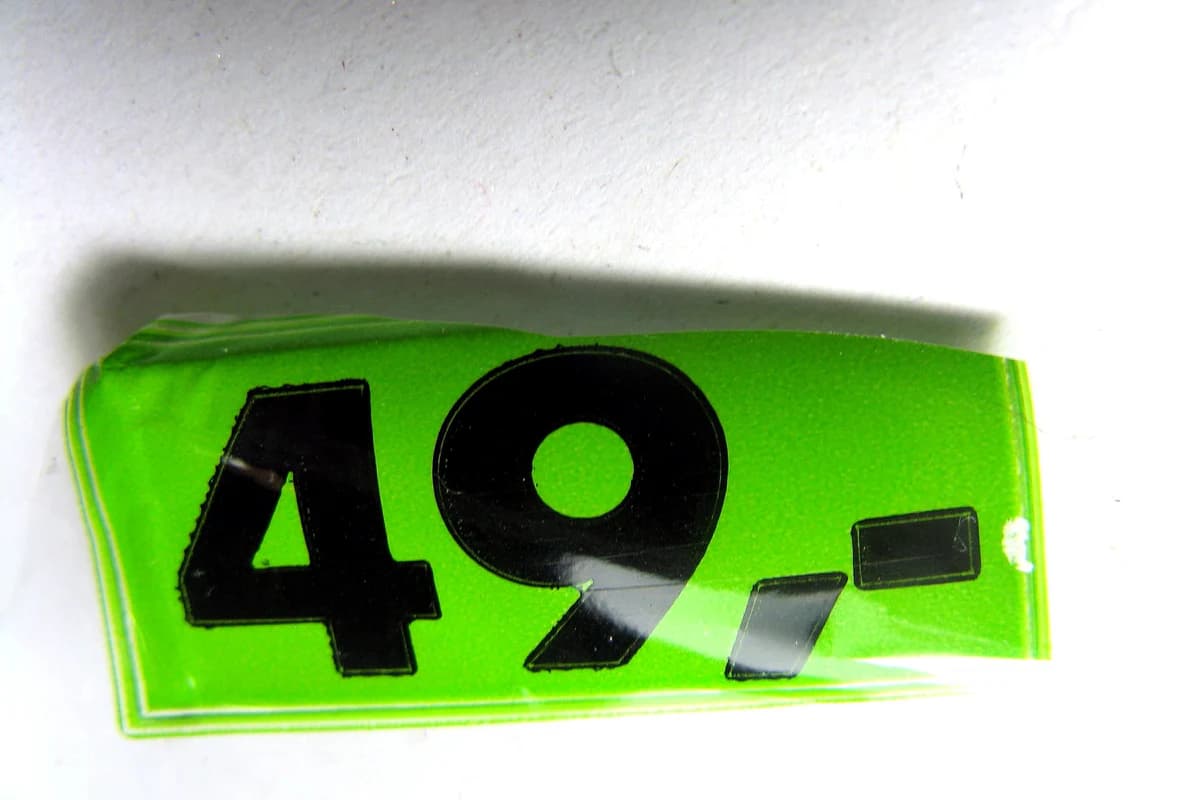 Before
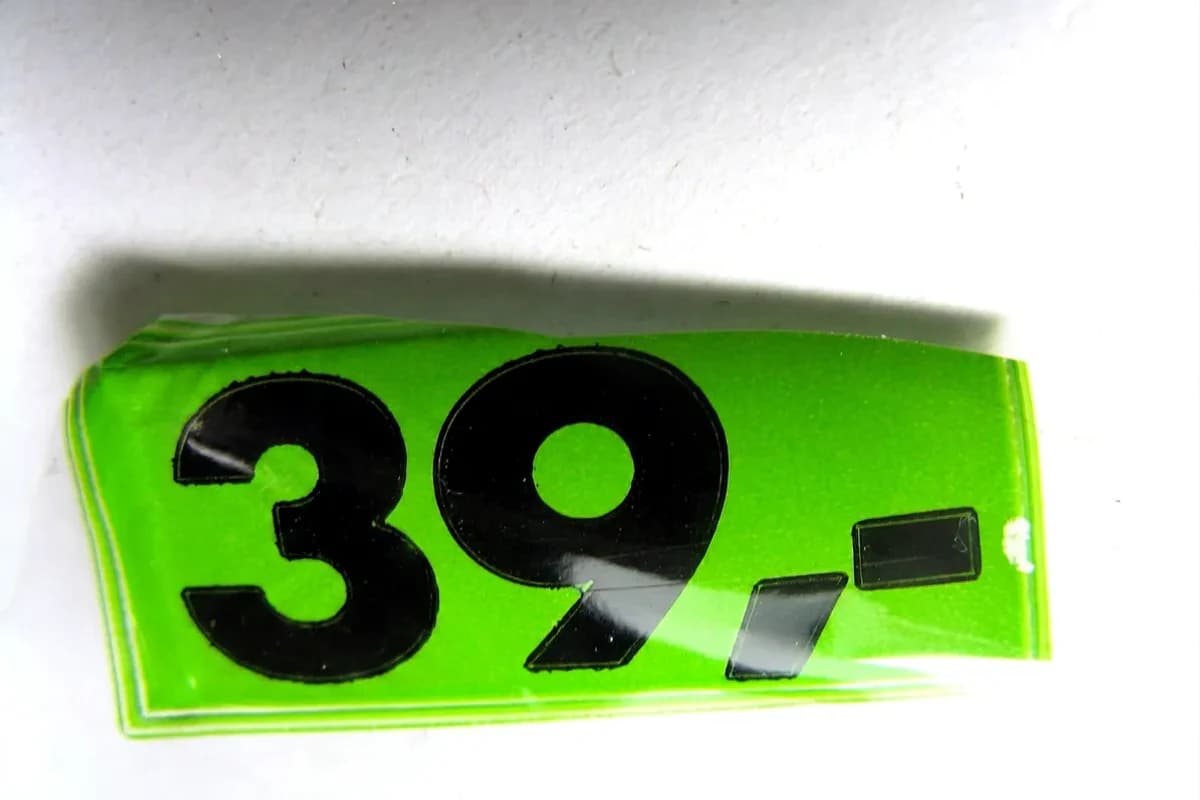 After
AfterSource: Price.jpg by Paolo Neo · Rights: Public domain (commercial use permitted by the author)
01
The useful difference is how you control the replacement.
Both products address text inside finished images. Their public workflows put the editing decisions in different places.
ImageTextEdit
Mark one complete text region, type the exact replacement, generate a new raster image, and inspect the result.
PhoText
Its public page describes detected text boxes plus controls for font, size, color, position, spacing, and other type settings.
Neither approach restores the original design file. If you still have the editable Canva, Photoshop, Figma, or other source, change the live text there. That keeps the type, layout, and future revisions under direct control.
02
Compare the work before comparing the result.
This table describes the two public workflows as checked on July 30, 2026. It does not claim that either product will always produce a better image.
| Question | ImageTextEdit | PhoText public workflow |
|---|---|---|
| How do you locate the text? | Draw a selection around the complete region. | Use detected text or make a manual text region. |
| How do you enter the change? | Type one replacement instruction for the selected area. | Edit detected text, then adjust it with type controls. |
| What can you tune directly? | The selection and replacement wording before generation. | Font, size, weight, color, opacity, spacing, line height, and position are listed. |
| How is the old text handled? | The selected raster region is generated again. | Background cleanup is listed before placing replacement text. |
| What inputs are described? | JPG, JPEG, PNG, and WebP finished images. | PNG, JPG, WebP, and the first page of a PDF are listed. |
| What do you review? | The generated image for spelling, style, nearby detail, and unintended changes. | The placed text, typography settings, cleanup, and exported file. |
Product features change. The PhoText descriptions above come from its public product page checked on July 30, 2026. Recheck that page if a particular input, output, or control is important to your work.
03
This proof shows what ImageTextEdit actually returned.
The source is a public-domain photograph. The before-and-after proof above is the product's real output from changing 49 to 39.
That pair proves that ImageTextEdit produced this specific result on this specific source. It does not prove that the product is always more accurate, faster, or easier than PhoText. A fair quality comparison would require the same source, replacement, review criteria, and dated run through both products.
The example is a good fit because the replacement is short, the text region is clear, and the surrounding sign should not change. For the mechanics behind that repair, read how AI image text editing works.
04
Choose ImageTextEdit for one contained raster repair.
The focused workflow fits when the source file is gone, the image is otherwise ready, and one short text region is the problem.
- You have a finished JPG, JPEG, PNG, or WebP.
- One price, date, number, label, typo, or short headline is wrong.
- You want to define the region instead of tuning individual type settings.
- A newly rendered raster image is the output you need.
- You can compare the result with the source before publishing.
- You own the image or have permission to change it.
Keep the selection tight but complete. Include every letter plus its outline, shadow, glow, or reflection, along with a narrow edge of the immediate background. Longer replacement copy and tiny or blurred source text are harder to fit and review.
05
Choose PhoText when direct type controls matter.
Based on its current public page, PhoText is the better workflow to test first when you want to adjust the replacement as a detected or manually placed text region.
Detected text boxes
You want the product to locate visible words before you choose what to edit.
Manual typography
You need direct controls for font family, size, weight, color, opacity, spacing, or position.
PDF input
You need to open the first page of a PDF in the same canvas workflow.
Several output choices
You want to test the PNG, JPEG, WebP, or PDF export options listed on its public page.
06
Make the choice in four questions.
A narrow decision is more useful than a universal winner.
- 01
Do I have the editable source?
If yes, change the live text there and export a fresh image.
- 02
Do I need direct type settings?
If yes, test PhoText and inspect its detected text and manual controls.
- 03
Is this one contained finished-image repair?
If yes, try ImageTextEdit with a tight selection and exact replacement.
- 04
Can I verify the result?
If no, do not publish the edit. Use a method that gives you enough control to review it.
If ImageTextEdit matches the job, open the image text editor. Uploading and preparing the selection does not spend a credit. Generation does.